
• Home
  • Reviews
  • Featured
  • Archives
  • Videos
  • Devices
  • Tegra
  • Send Tips
  • Contact
  • AndroidCommunity on Twitter AndroidCommunity on Facebook AndroidCommunity on Google+ AndroidCommunity RSS Feed

Android Community

    • MUST READ

      STORIES

    • Sony Xperia Tablet Z global release details confirmed

      May 21, 2013

    • NVIDIA Tegra 4i demos i500 LTE modem on Cat 4: 150Mbps of speed

      May 21, 2013

    • HP Slatebook x2 Tablet hands-on

      May 21, 2013

  • Trending Topics
  • Jelly Bean
  • NVIDIA
  • Galaxy S 4
  • HTC One
  • Nexus 7
  • Sell Your Used Phone

Notion Ink Adam Eden VIII Update: Apps without Leaves

0
  • By Chris Burns
  • on 31 Dec, 2010

Notion Ink Adam Eden VIII Update: Apps without Leaves

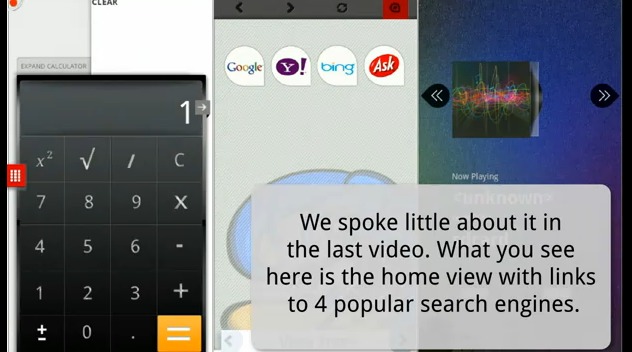
What happens when you launch an app in Eden on the fabulous Notion Ink Adam when it doesnt have a Leaf? This is the initial question asked in this newest demo video from Notion Ink. This should answer your questions about what apps will look like if they’ve not yet exactly gotten on board fully with the Leaf system on Adam – this will be a LOT of apps at the launch, we suppose. This video begins with the launcher, from which you will be able to drag and drop icons to your Leaves to open a new one. If that app doesn’t have a Leaf, Eden will prompt you with options.

Rohan (the guy who’s been doing all these videos) continues by going through several search engines as they appear as a Leaf. You’ll only have to worry about Google though, right? Yahoo!, Ask, Bing, fah! They note from there that leaves can be of four types:

Info Containers (Calendar)
Placeholders (Canvas)
Full Apps (Twitter, Facebook)
Mini Apps (Sniffer, Mail’d)

They use the mail app as an example for what happens when an app needs to accomplish a task greater than the leaf can handle: replying to an email launches the full app to do the task, then reduces back down to the leaf once finished, releasing the resources needed for the reply.

Third party app installation! This is done so simply it’s totally unbelievable – just tap the intended .APK file and confirm to install. They do a demo of an install of a PacMan app from the internet. The download shows up in your notifications bar like normal, and as noted in the last update, this shows up in the corner blinking red, a button which you can expand at a click to show the full bar.

Arranging leaves happens in sequence of opened leaves followed by remaining apps. Re-arranging leaves happens in the launcher by dragging and dropping the icons to the places you’d like – drag the icons down into your leaves. Get it? Easy!

[Via SlashGear]

Share
  • Student wins science fair with 30-second phone battery charger
  • Hisense Sero 7 Pro with Tegra 3, Android 4.2 takes on Google's Nexus 7
  • Verizon HTC One reality returns as DROID DNA offer pops up

Tags: AdamGoogleNotion Ink Adam

  • Search

  • REVIEWS

    • AT&T LG Optimus G Pro ReviewAT&T LG Optimus G Pro Review
    • Iron Man 3 game Review: what you need to knowIron Man 3 game Review: what you need to know
    • Samsung GALAXY S 4 ReviewSamsung GALAXY S 4 Review
    • Samsung Galaxy Note 8.0 ReviewSamsung Galaxy Note 8.0 Review
    • Pebble review: Two weeks with a smartwatchPebble review: Two weeks with a smartwatch
  • HANDS-ON & QUICK LOOKS

    • NVIDIA Tegra 4i demos i500 LTE modem on Cat 4: 150Mbps of speedNVIDIA Tegra 4i demos i500 LTE modem on Cat 4: 150Mbps of speed
    • HP Slatebook x2 Tablet hands-onHP Slatebook x2 Tablet hands-on
    • Google+ Hangouts app goes live, we go hands-onGoogle+ Hangouts app goes live, we go hands-on


  • T-Mobile G1 Accessories
  • RECENT COMMENTS

  • About
  • Contact
  • Terms of Use
  • Privacy Policy
  • Advertise

Copyright 2013 Android Community