
• Home
  • Reviews
  • Featured
  • Archives
  • Videos
  • Devices
  • Tegra
  • Send Tips
  • Contact
  • AndroidCommunity on Twitter AndroidCommunity on Facebook AndroidCommunity on Google+ AndroidCommunity RSS Feed

Android Community

    • MUST READ

      STORIES

    • Hisense Sero 7 Pro with Tegra 3, Android 4.2 takes on Google’s Nexus 7

      May 19, 2013

    • Google H840 media streamer hits the FCC to replace the Nexus Q

      May 18, 2013

    • Google+ Hangouts app update adds tablet support

      May 17, 2013

  • Trending Topics
  • Jelly Bean
  • NVIDIA
  • Galaxy S 4
  • HTC One
  • Nexus 7
  • Sell Your Used Phone

HTC Sync 3.0 adds auto Media Sync for Wildfire; other phones soon

1
  • By Chris Davies
  • on 3 Aug, 2010

HTC Sync 3.0 adds auto Media Sync for Wildfire; other phones soon

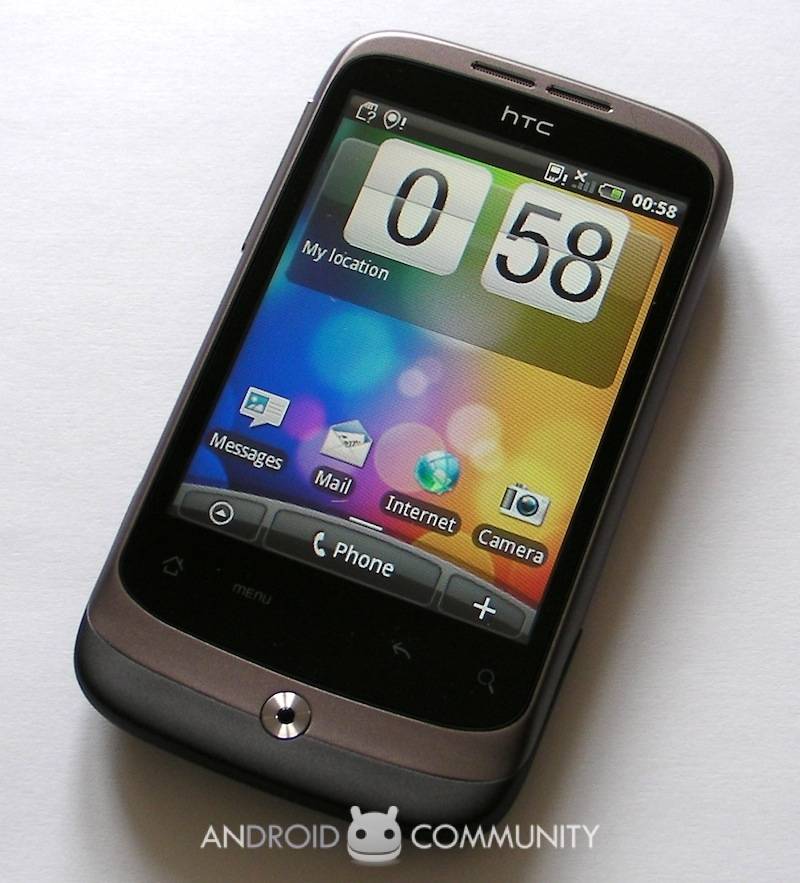
HTC has updated its desktop synchronization app, HTC Sync, to v3.0, adding in Media Sync functionality.  The new client apparently works with most popular media players (PC only), pulling in music, playlists and pictures automatically.

Currently the new version of Sync 3.0 will only work with the HTC Wildfire, but the company promises it “will be updated to fully support other HTC phones very soon.”  You can download it here.

HTC Sync 3.0 – New Feature Highlight: Media Sync.

HTC is delighted to present our newest version of HTC Sync.  Now packed with new features, this version features a media sync that is compatible with popular media players available on your PC.  You can bring your favorite tunes, playlists, pictures and more to your phone with the click of a button. To enable this function, please install the newest HTC Sync for your phone.  You can download this program from the downloads section of the HTC website.  We recommend that you temporarily disable your virus scanner and firewall programs while installing.  Then using the provided USB Cable, simply plug your phone into your computer.  On your phone you may have to select the option for HTC Sync. Once connected, HTC Sync should start automatically.  If you have disabled this or it does not pop up, simply go to the start menu and start it manually. Once the application has opened, you will see a picture of your device on the left, and on the right of that image, a list of options for you to sync to your phone.  Select Music. Once you have highlighted Music, you can choose to sync a specific folder of music you already have organized, or  you can select to sync playlists from popular media players. Currently HTC Sync has only been released for HTC Wildfire, however HTC Sync will be updated to fully support other HTC phones very soon. Note: This version of HTC Sync is only compatible with Android 2.1 and later.

[via Twitter]
Share
  • Google H840 media streamer hits the FCC to replace the Nexus Q
  • Hisense Sero 7 Pro with Tegra 3, Android 4.2 takes on Google's Nexus 7
  • New Nexus 7 outed in Google Hangouts video

Tags: htcHTC Wildfiremediasoftware

  • Pingback: HTC Sync 3.0 Automatically Syncs Your Media

  • Search

  • REVIEWS

    • AT&T LG Optimus G Pro ReviewAT&T LG Optimus G Pro Review
    • Iron Man 3 game Review: what you need to knowIron Man 3 game Review: what you need to know
    • Samsung GALAXY S 4 ReviewSamsung GALAXY S 4 Review
    • Samsung Galaxy Note 8.0 ReviewSamsung Galaxy Note 8.0 Review
    • Pebble review: Two weeks with a smartwatchPebble review: Two weeks with a smartwatch
  • HANDS-ON & QUICK LOOKS

    • Google+ Hangouts app goes live, we go hands-onGoogle+ Hangouts app goes live, we go hands-on
    • Flipboard magazines arrive with v2.0 update, we go hands-onFlipboard magazines arrive with v2.0 update, we go hands-on
    • Lenovo IdeaCentre Horizon hands-on with BlueStacks for Android gamingLenovo IdeaCentre Horizon hands-on with BlueStacks for Android gaming


  • T-Mobile G1 Accessories
  • RECENT COMMENTS

  • About
  • Contact
  • Terms of Use
  • Privacy Policy
  • Advertise

Copyright 2013 Android Community