

VSCO remains one of the most popular mobile photo editing apps currently on the market. If you’ve been using it, then there are times when you know you’ve made a killer combination of edits that you would probably like to use again in the future. But trying to remember exactly what edits you used may be difficult. The great news is that now, you will be able to save these edits to create a “recipe” and later on apply it to some other pictures as needed.
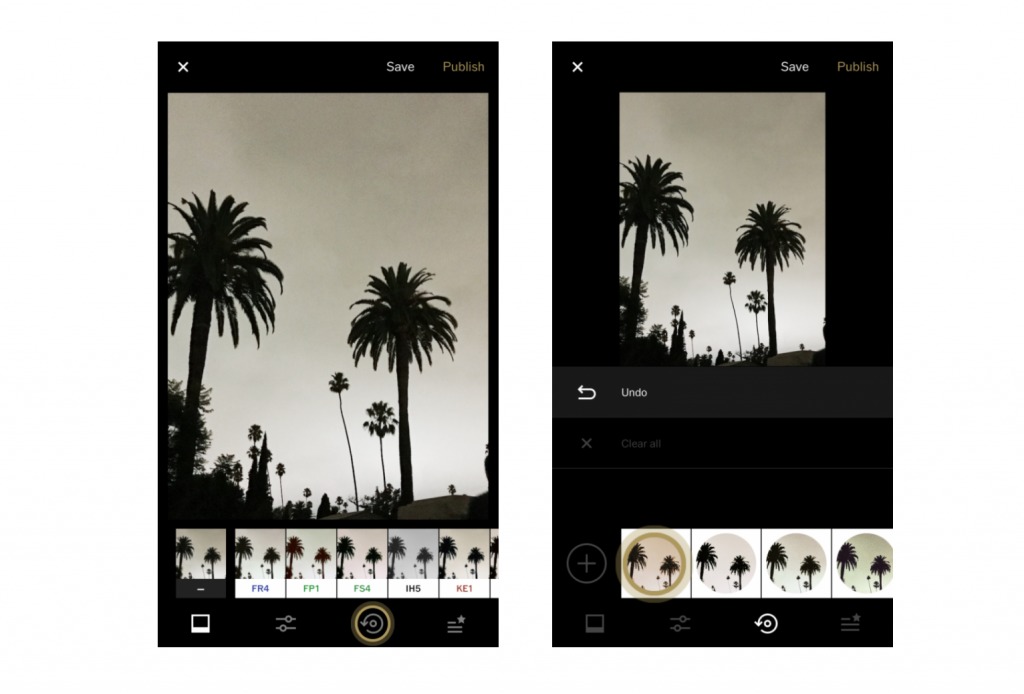
Creating a recipe is pretty easy, especially if you know your way around the app. First of all, select a picture from your library that you want to edit and then tap on the edit icon. As you would normally edit a photo, choose a preset and then adjust the aspects of the photo using the toolbar. To compare your edits with the original photo, use the swiping gestures. Swipe left to undo an edit and right to redo an edit.
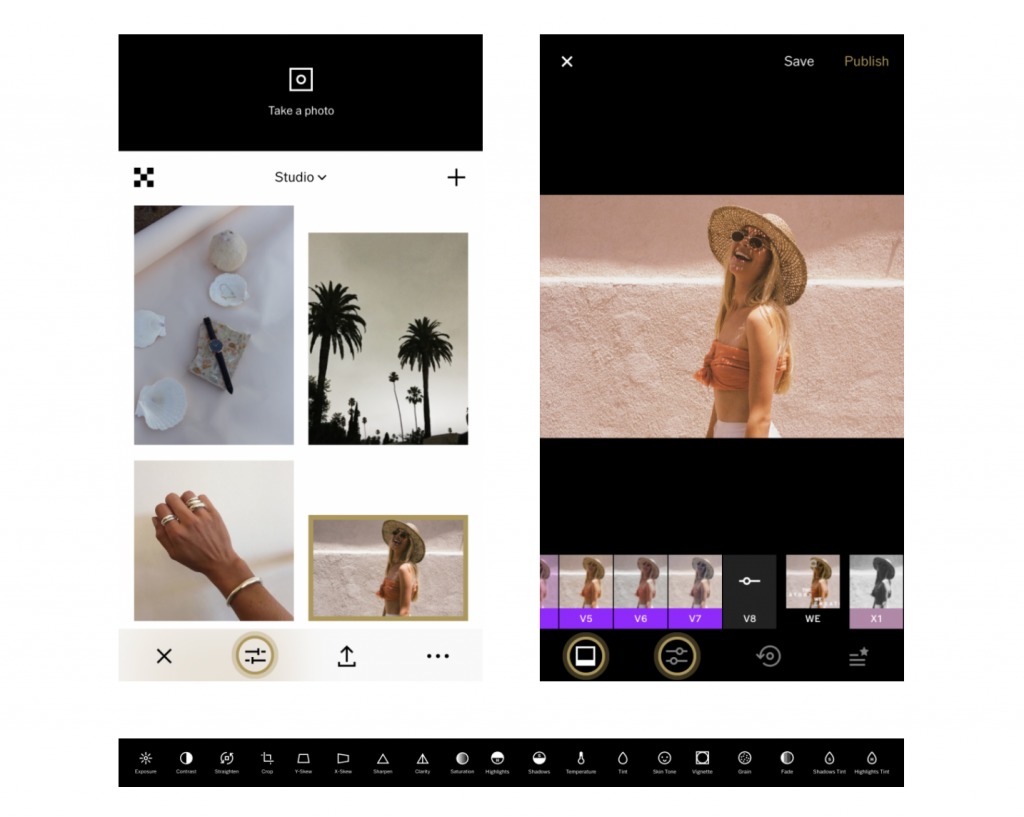
You then select the Edit list icon and then remove or adjust a specific tool or preset that you used for the photo until you’re satisfied. Once you’ve finalized your photo, you can tap on the + icon to create and save the current recipe that you used. Take note that edits made with Straighten, Crop, Y-Skew, and X-Skew cannot be included when you save a recipe since they’re very image specific.
If you’re using VSCO for free, you can save one recipe. If you want to save more, you will have to start your free VSCO X free trial. Not only do you get to save up to 10 recipes but you also get access to their “complete preset library, newest editing tools, and inspiring educational content” for just $20 a year. Update to the latest version to start adding a recipe or recipes.
SOURCE: VSCO