
It’s time to get your access on! The folks at Geek Software Technology Inc have brought forth an awesome bit of functionality that we thought you aught to be familiar with! This isn’t the newest innovation on the marketplace, of course, but it’s certainly something everyone should have a knowledge of! Below you’ll find instructions on how you can have your mobile phone in one hand, not connected to anything except a Wi-Fi network, and another device in your other hand accessing the microSD card of the first just by being connected to the same Wi-Fi network! Neato!
Before we begin, you’ll want to grab the File Expert app from the Android Marketplace – it’s totally free and works on essentially all Android devices. Note also that this process has been tested by the fine folks at XDA Developers on PC, Android, and iOS, so you’ll pretty much be safe to say you’re gonna have this mother in action before the day is through. That download was step one, now we’ll continue on with:
Step 2: Open File Expert and press the “Share” icon at the bottom of the screen. This is the gigantic window with an arrow inside it.
Step 3: Select “Enable WEB Sharing”, this being the first option on the screen.
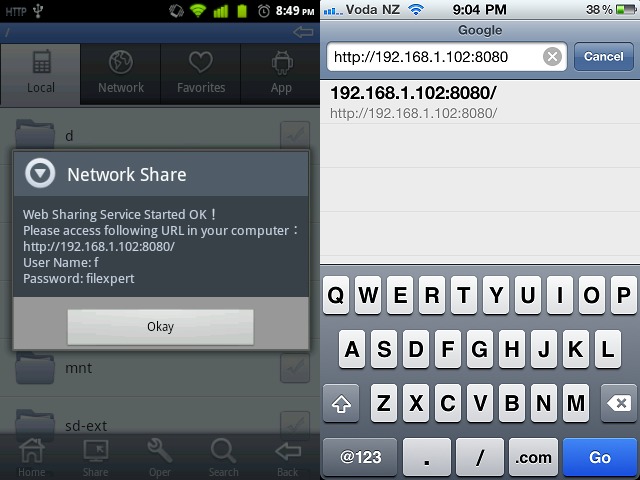
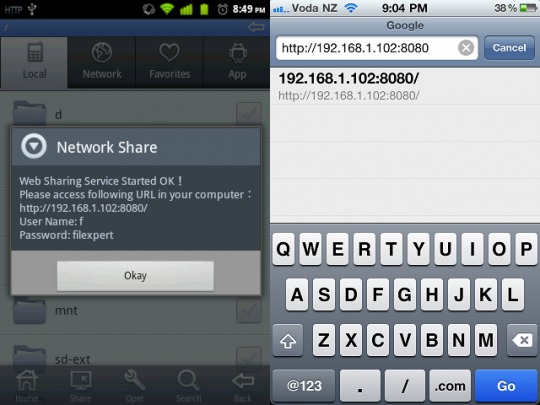
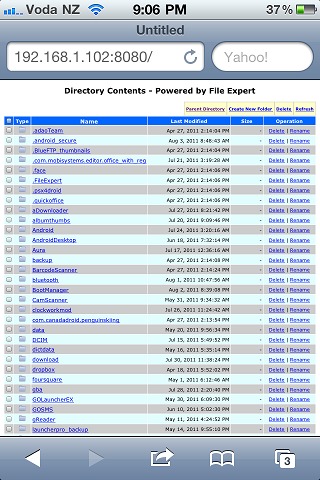
Step 4: The IP and authentication info will be displayed. The URL (on the third line down, the http bit,) will be what you’re going to want to enter in the web browser of the other device you’re working with. The user name and password here are what you’ll be entering there as well.
Step 5: Enter that information into the other device you want to work with and BAM! You’re done!
Some notes from the developers:
Please note:
1. This may not work on all devices, ranging from hosting the HTTP server to accessing the SD card from another device.
2. This may not work on all browsers as they may not have the specifications required to access the HTTP server.
3. The username/password can be changed in the File Expert settings or you can COMPLETELY disable any authentication.
3. The user and it’s affiliates are NOT responsible for any damage caused physically and/or mentally
Sound easy enough? Get to it! Tell us how it goes!
[via XDA Developers]